Full-Text Inquiry
Full-Text Inquiry provides you with the ability to search documents based on text contained within them. When you query documents using DocLink's full-text inquiry feature, the system will examine all the words in every configured document type as it tries to match the provided search criteria.
How to Search
- In the Company section, select the appropriate top-level folder from the list (to highlight multiple companies, hold down the Shift or Ctrl key on your keyboard as you select). If you wish to search all companies, click the Select All link.
- In the Document Types section, choose all relevant document types you want to search (to highlight multiple types, hold down the Shift or Ctrl key on your keyboard as you select). If you wish to search all document types check the Select All link.
- To filter results to a specific date range, select the Filter by Entry Date option. The Date Range dialog opens.
- Enter a start date in the From field. Select the down arrow to open the calendar control.
- Enter an end date in the To field. Select the down arrow to open the calendar control.
- If you wish to maintain a date filter that changes depending on the current date displayed, check the Range is relative to Today option.
- Click OK. When you click the OK button, you will see a description of the date filter on the Advanced Inquiry window.
- Use the Search for field to enter the search terms you want the system to evaluate. Use one of the following search options that is relevant to your inquiry:
- Find documents containing the exact phrase or all of the word.
Results using this option are ranked by occurrences of the exact phrase match, then occurrence of any of the words.
- Find documents containing any of the words
Results using this option are ordered by occurrences of any of the words in the search term. Ranking is by the number of occurrences of any of the words.
Use this option when searching for documents that contain special formatting characters (ex: Word or Excel documents).
- Use search operators and punctuation
Standard search operators can be used to search documents. Exact match results will show higher in the rankings.
Here are some examples search operators you can use:
Operator Description AND or & Contains ALL the search terms you type in. OR or | Contains at least one of the words you type in. " " Searches documents for exact phrase contained within quotes. - Removes a specific search term from results. Example: searching for 'service -agreement' would return matches that contained the term 'service' and exclude the term 'agreement'.
* Acts as a wildcard and used in place of part of a phrase or word. Example: searching for 'ap*' would return matches that include AP, AP-Link, ape, APEC, apple, apples, etc.
- Find documents containing the exact phrase or all of the word.
- When you have entered in all the search criteria, press Enter on your keyboard or click the Search
 button. Your results will appear in a new search results window.
In the example below, the exact phrase appears once, and in one document.
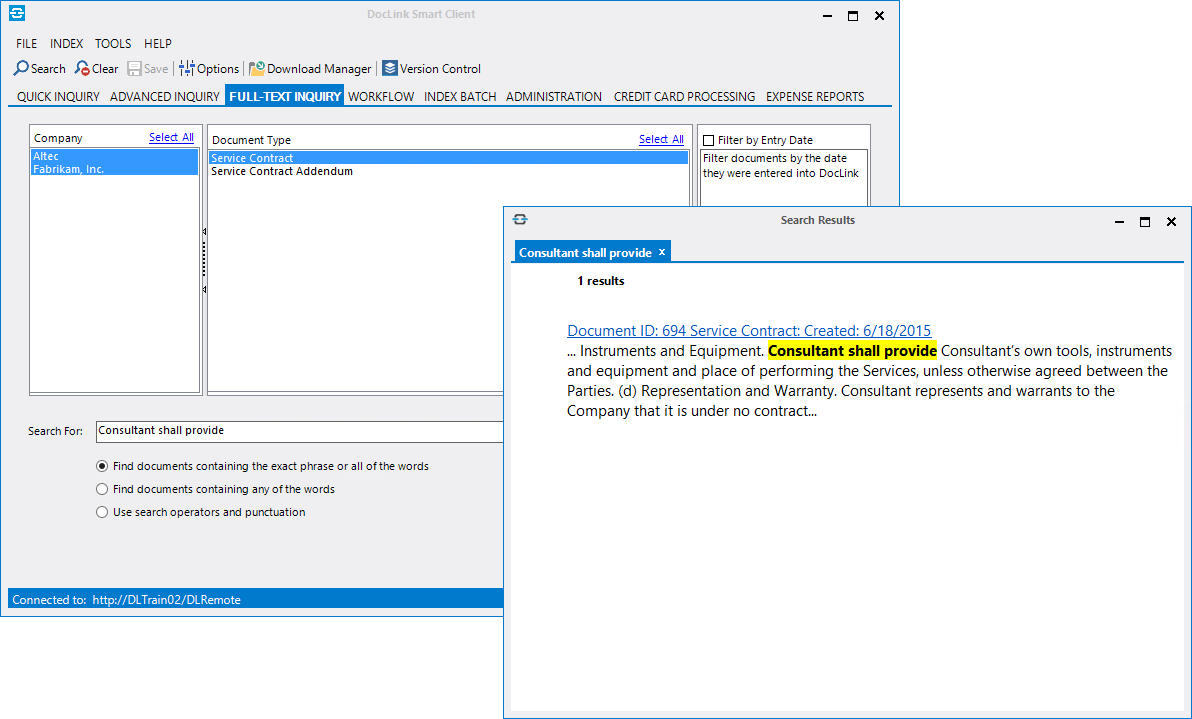
To view the document in the viewer, click on the link. The information contained in the link is dependent on the Search Option Defaults you have selected on the Document Results Window tab.
